
Step 1: Understand the Incorrect Way of Recording the Sale
This process explains how to correctly record instant rebates offered by a master dealer in your POS system so that your sales, cost, and sales tax are accurate, and your receipt clearly shows the full phone price and the split between customer payment and instant rebate.
Step 1: Understand the Incorrect Way of Recording the Sale
When you receive an instant rebate from a master dealer, they might say: you purchase the phone for $1,200, but you must sell it for $1,100 and let the customer pay only $100.
If you sell the phone directly by scanning it in the normal way and processing it as a $100 sale, your POS will record your cost as $1,200 and your sale as $100, showing a loss of $1,100 and incorrect sales tax.
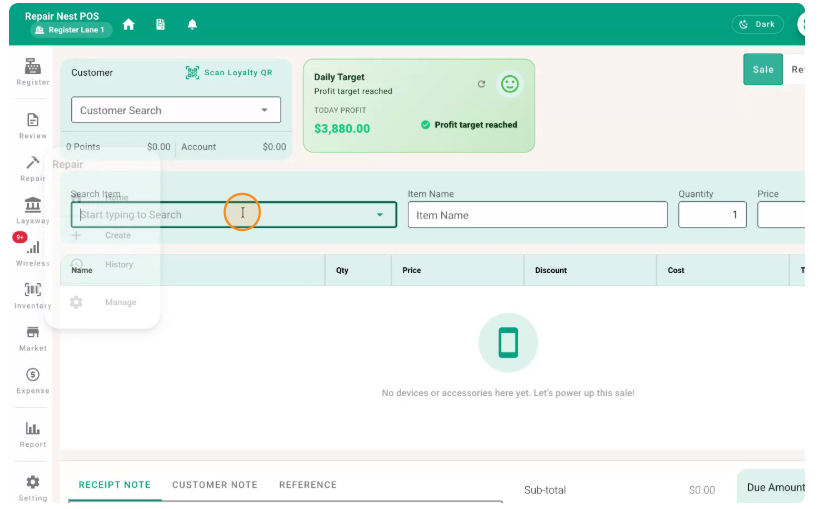
Scan the phone in the regular sales screen.
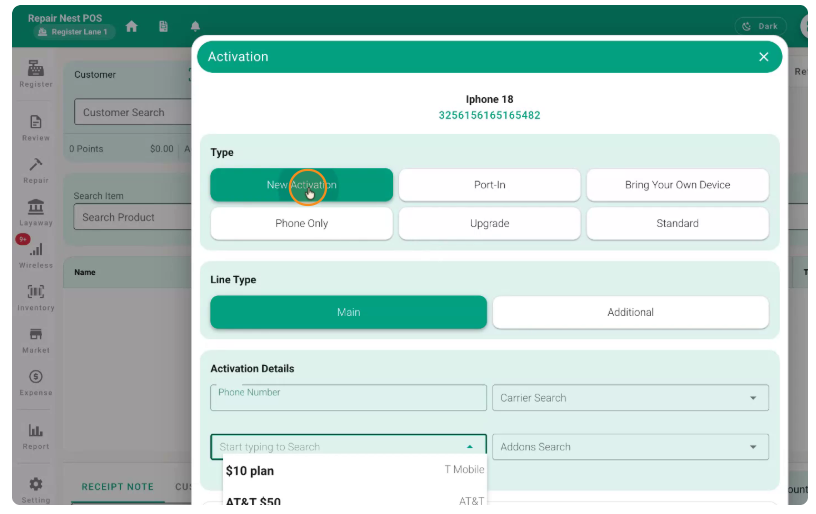
Select New Activation.
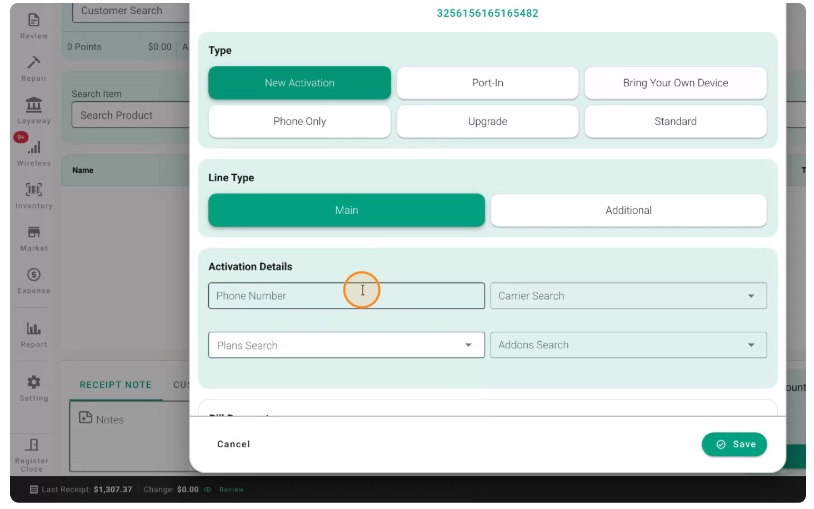
Enter the customer’s phone number in the appropriate field.
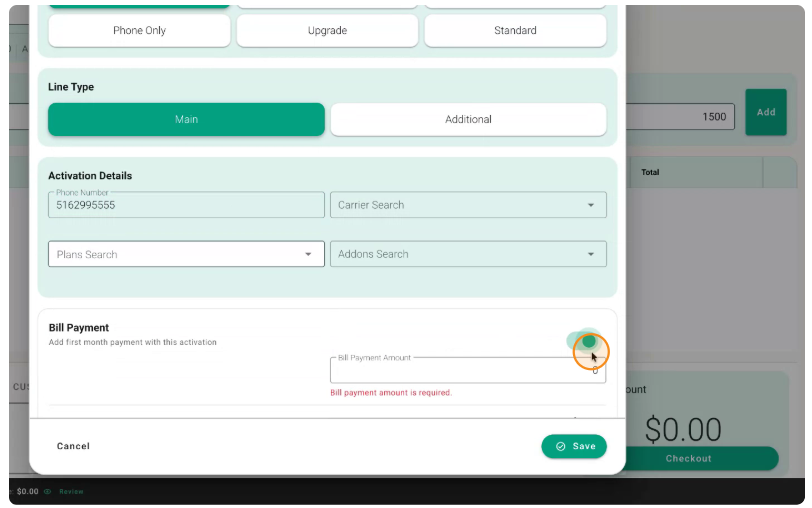
Continue the sale as usual.
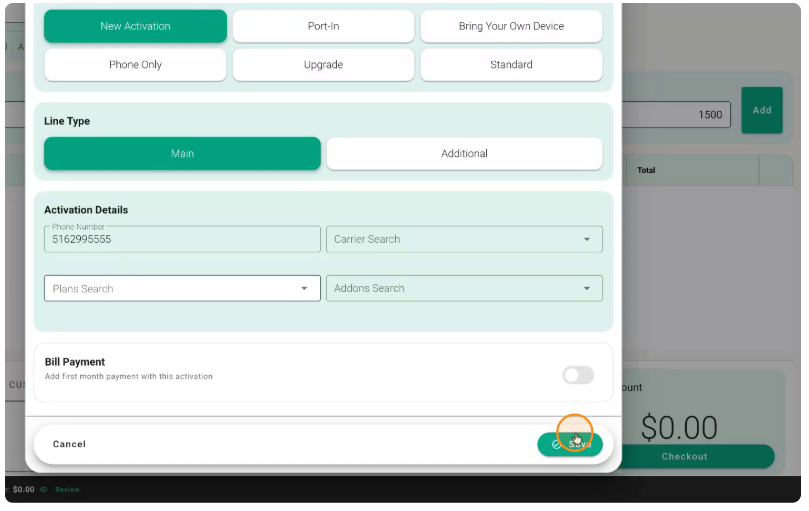
If you then set the selling price here to $100:
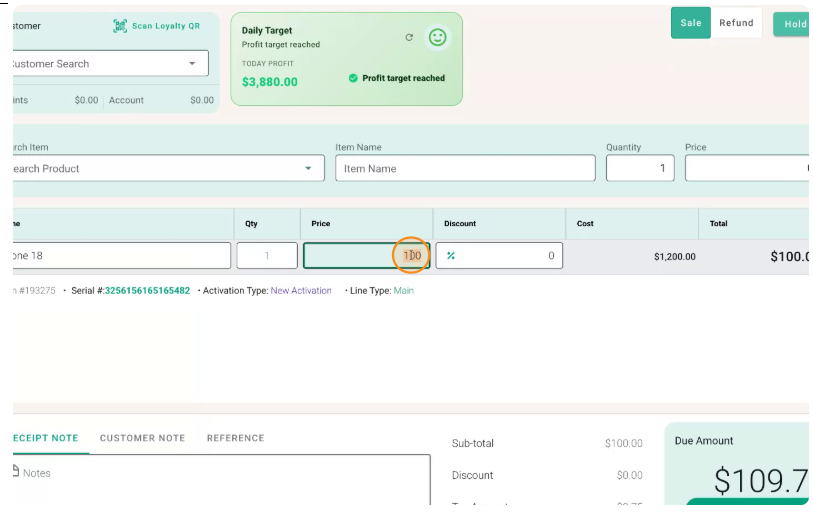
Your cost will still be $1,200, and your sale will be $100.
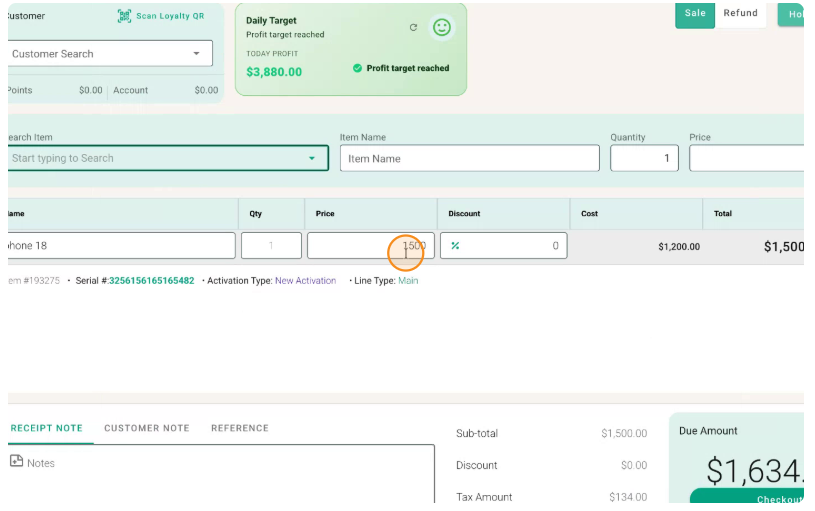
This will show an $1,100 loss and will not calculate sales tax correctly. Do not use this method for instant rebate transactions.
Step 2: Open Payment Method Settings
To handle instant rebates correctly, you must create and use a dedicated payment method called Instant Rebate.
Go to your POS Settings menu.
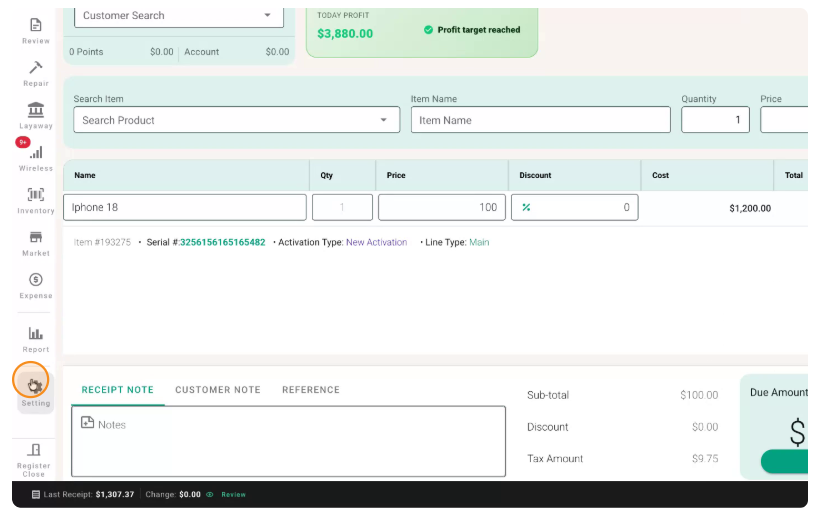
In Settings, search for Payment Method.
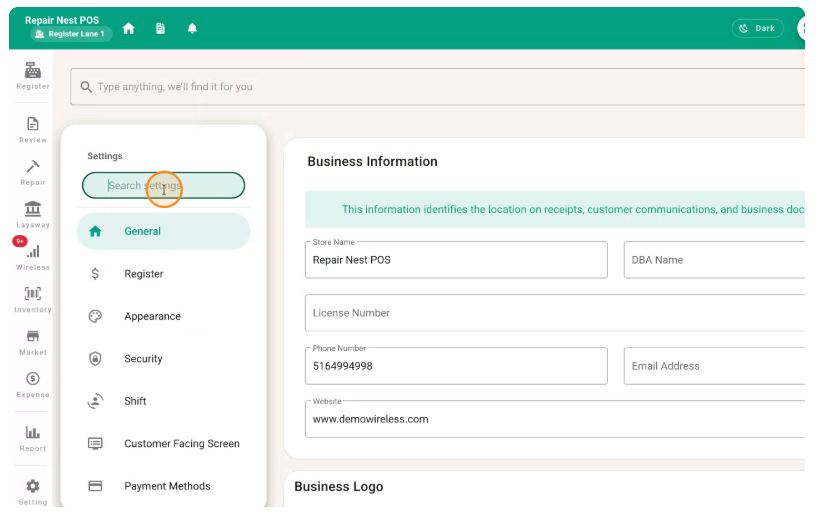
Open the Payment Method configuration section.
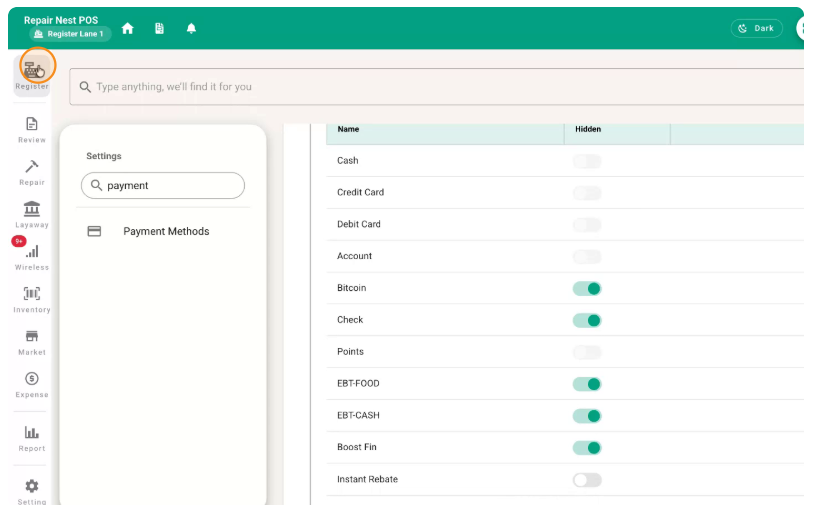
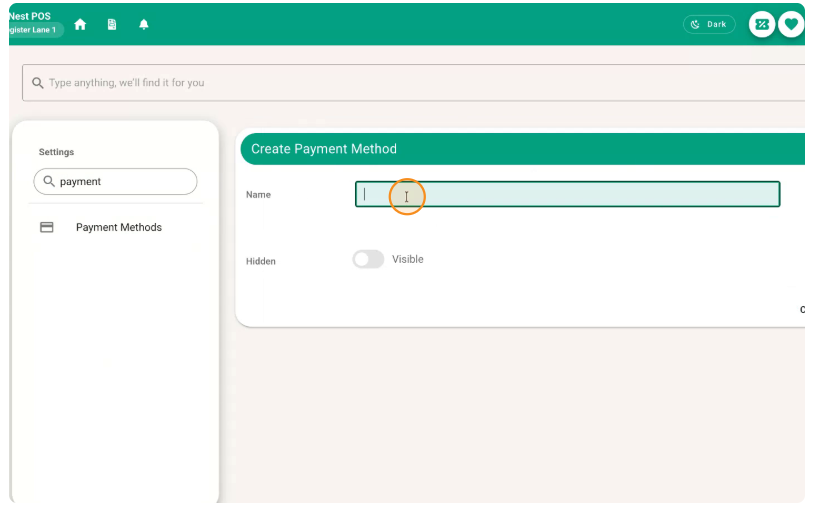
Create a new payment method.
Name this payment method Instant Rebate (or a clear equivalent).
You should now see the newly created Instant Rebate payment method listed.
Confirm that the Instant Rebate payment method is active and available for use.
Step 3: Ring Up the Phone at Full Price
Now process the sale using the full price of the phone, not the discounted amount.
Go back to the sales screen and select the phone item again.
Instead of changing the item price to $100, keep the price at the full $1,200.
Ensure the line item shows $1,200 as the selling price.
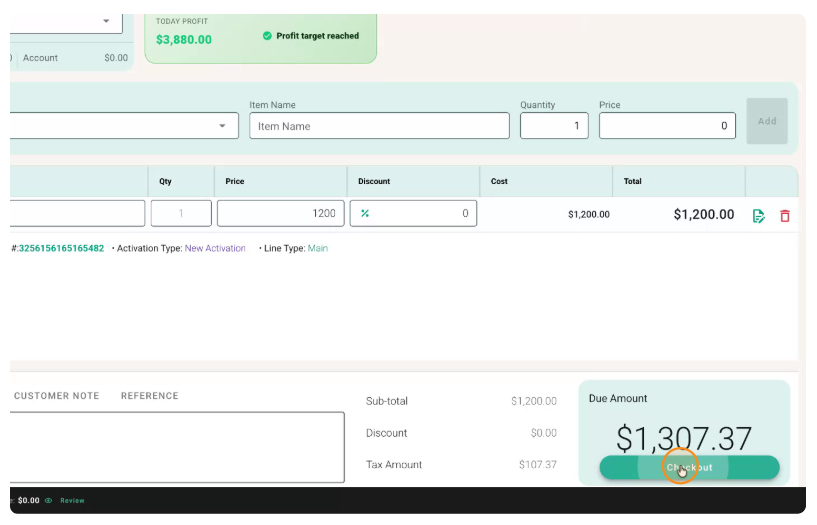
Proceed to Checkout with the full price.
At checkout, you will now apply the instant rebate using the payment method you created.
Step 4: Apply the Instant Rebate as a Payment Method
When you are on the checkout/payment screen, decide how much of the total will be covered by the instant rebate and how much will be paid by the customer.
Click to proceed with payment.
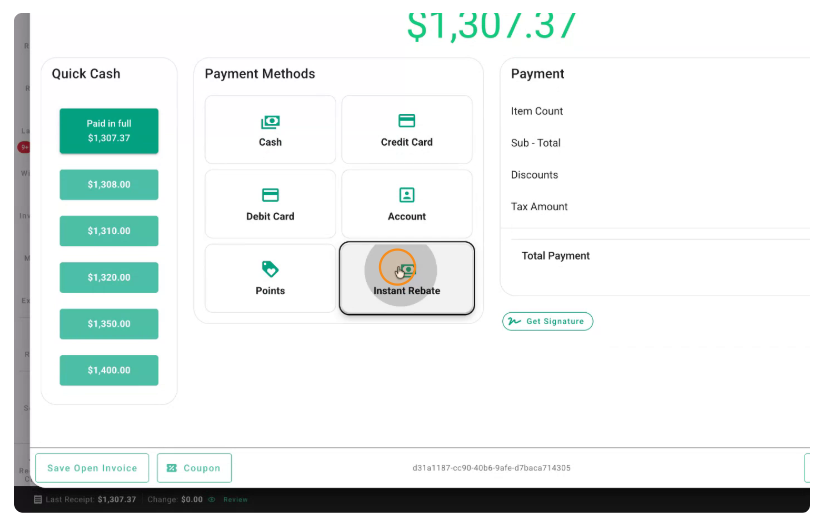
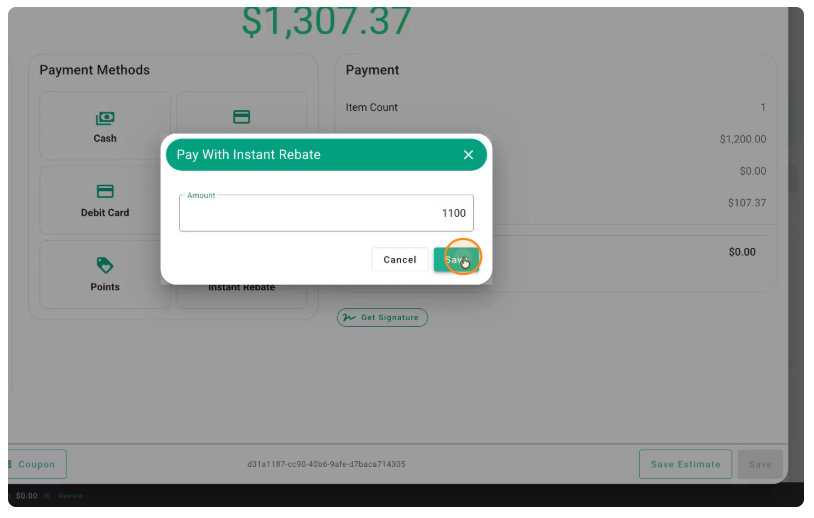
Enter the Instant Rebate amount you will receive from the master dealer.For example, if you receive $1,100 as an instant rebate, enter $1,100 as payment under the Instant Rebate method.
Click Save to apply this payment.
The remaining balance will be paid by the customer (e.g., $100 by cash/card).
Alternatively, if you prefer to take the tax impact on yourself, you can set it so that the customer pays only $100 total, and the rest of the amount (including the tax portion you choose) is covered by the Instant Rebate payment method.
In that case, you can specify that $100 will be paid by the customer, and the rest of the balance will be assigned to Instant Rebate.
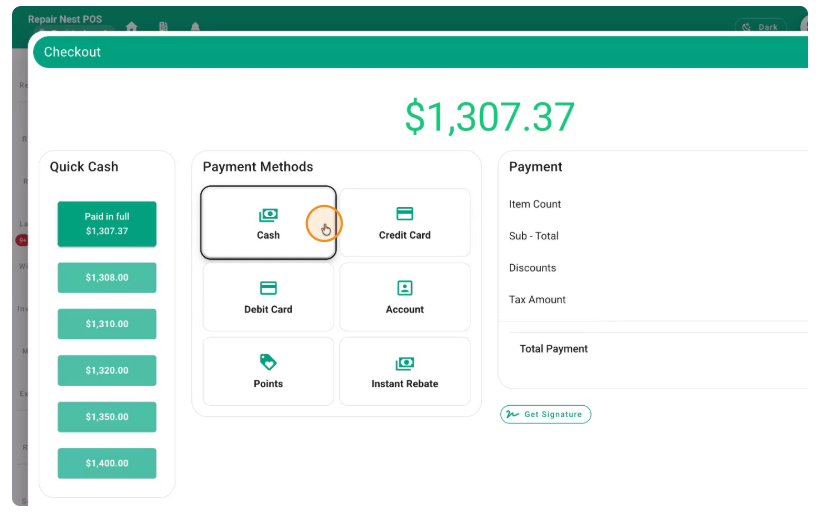
Enter the remaining amount as Instant Rebate.
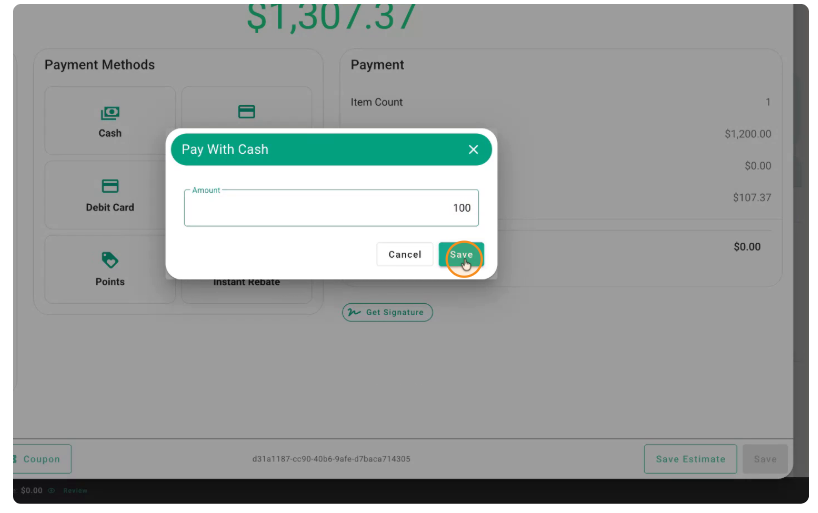
For example, if the remaining amount comes to $1,207, that full amount is assigned to the Instant Rebate payment method.
Confirm the total Instant Rebate amount (e.g., $1,207) and complete the payment.
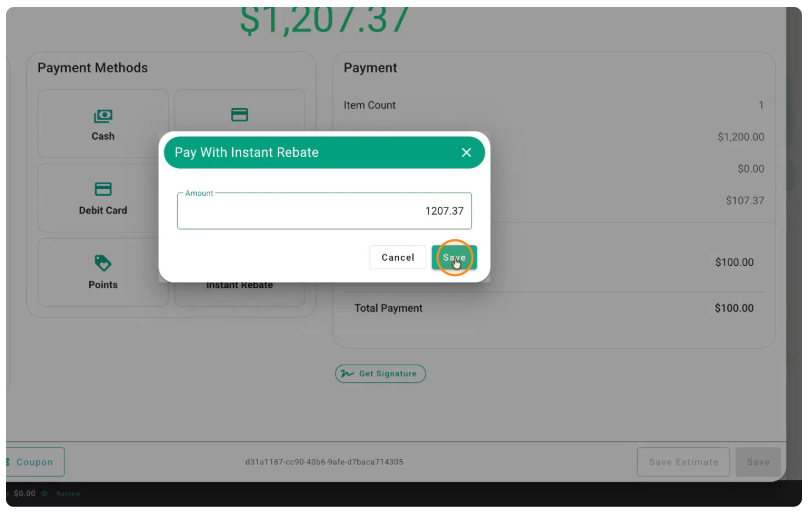
Save the transaction to finalize the sale.
Step 5: Review the Receipt and Recordkeeping
Once you save the transaction, your receipt will display the correct full price, tax, and payment breakdown.
The receipt will show the phone’s total price as $1,200.
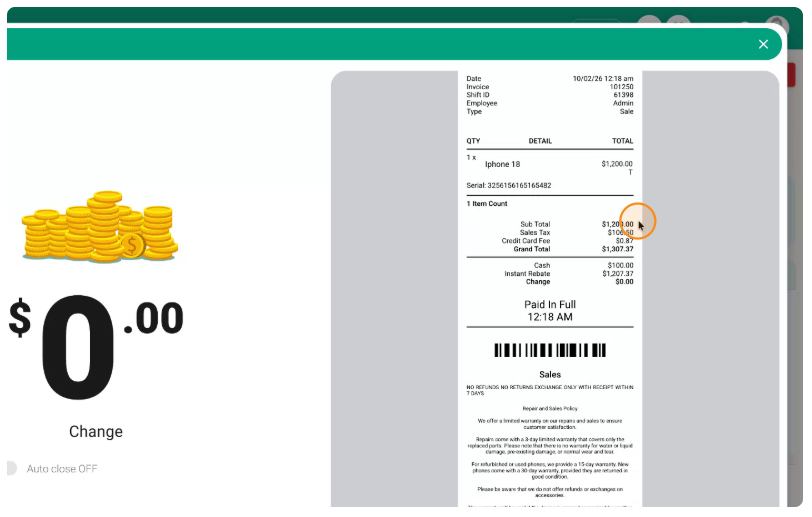
The customer will see a $1,200 item price, the correct sales tax amount, and a clear split of who paid what:
Customer payment (e.g., $100 via cash/card)
Instant Rebate (e.g., $1,100 or $1,207) as a separate payment method
This ensures your sales, cost, and tax records are accurate, and the master dealer’s instant rebate is properly documented in your POS.