
Create a Customer
Create a customer record to keep contact details, addresses, loyalty activity, and purchase history together.
Open the customer list

Open Review and select Customers.
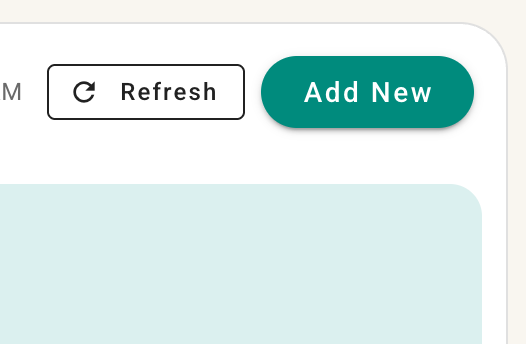
Select Add New from the customer list.
Enter the required information
- First name is always required.
- Phone number is always required.
- Last name is optional unless your organization has enabled the setting that makes it required.
- Email is optional.
You may also add an internal description and record how the customer heard about your business. Depending on your settings, the referral-source field may be required.
Add more details
Select More Options to enter an address, preferred language, additional contact information, and customer tags.
If you do not need the optional details, leave More Options closed and continue.
Save the customer
- Review the information.
- Select Save.
The customer will be added to the customer list and can be selected in supported sales and service workflows.
Tip: A separate settings article will explain how to require customer last names and referral sources. Link that article here once it is available.