Held Invoices
Pause a cart, optionally print a hold ticket, monitor held-cart counts, and safely recall or delete held invoices.
- What Is a Held Invoice?
- How to Put an Invoice on Hold
- How to Print and Use a Hold Ticket
- How to Find and Recall a Held Invoice
- How to Delete a Held Invoice Safely
What Is a Held Invoice?
Hold temporarily saves the current cart so an employee can serve another customer without cancelling or completing the first transaction.
For example, if a customer needs more time to choose an accessory or retrieve payment, place the cart on hold and begin the next sale. The held cart keeps its items, customer when selected, totals, description, and hold time until it is recalled or deleted.
A hold is not a completed sale and does not collect payment.
How to Put an Invoice on Hold
- Add at least one item to the cart.
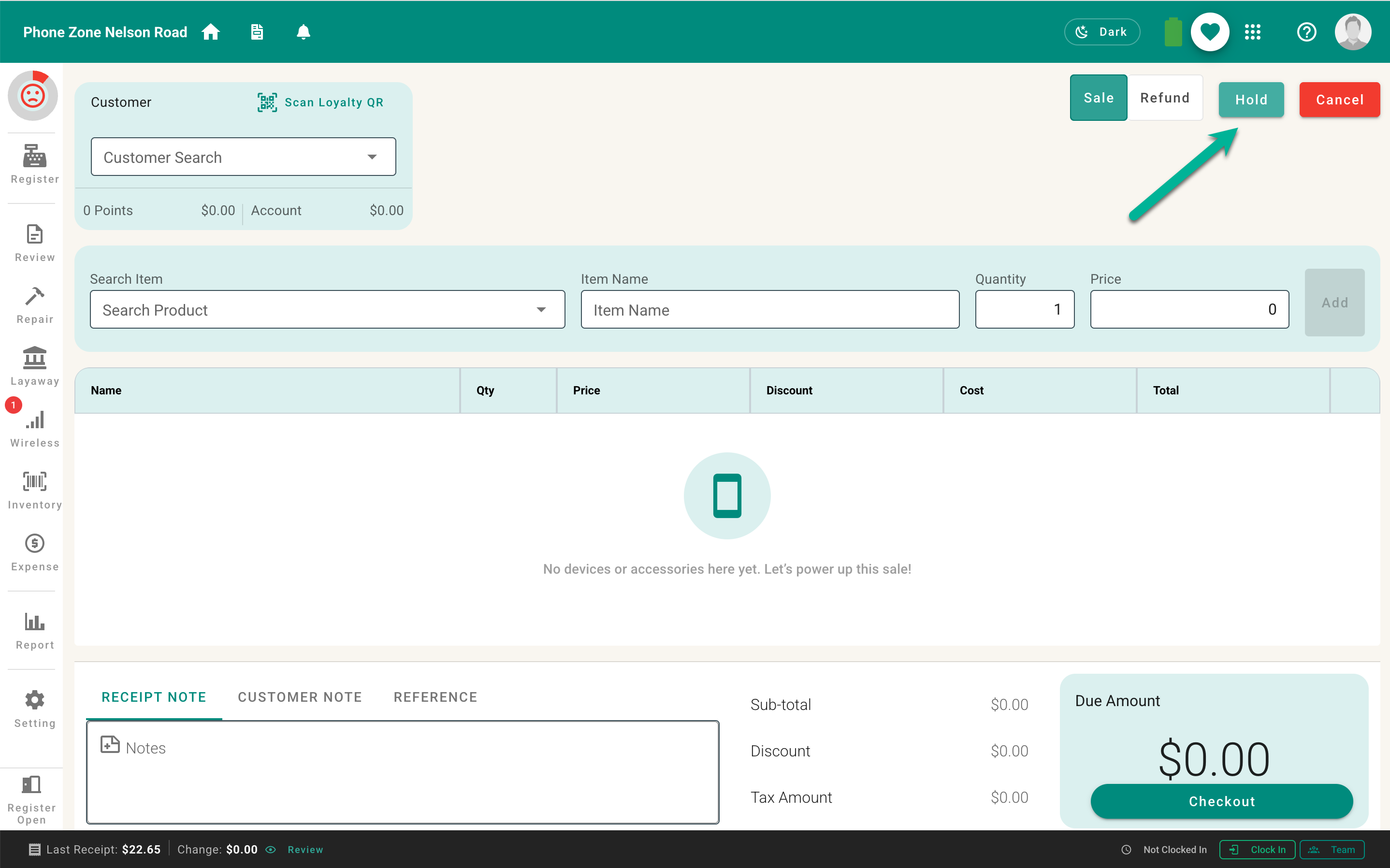
- Select Hold beside the Cancel action.
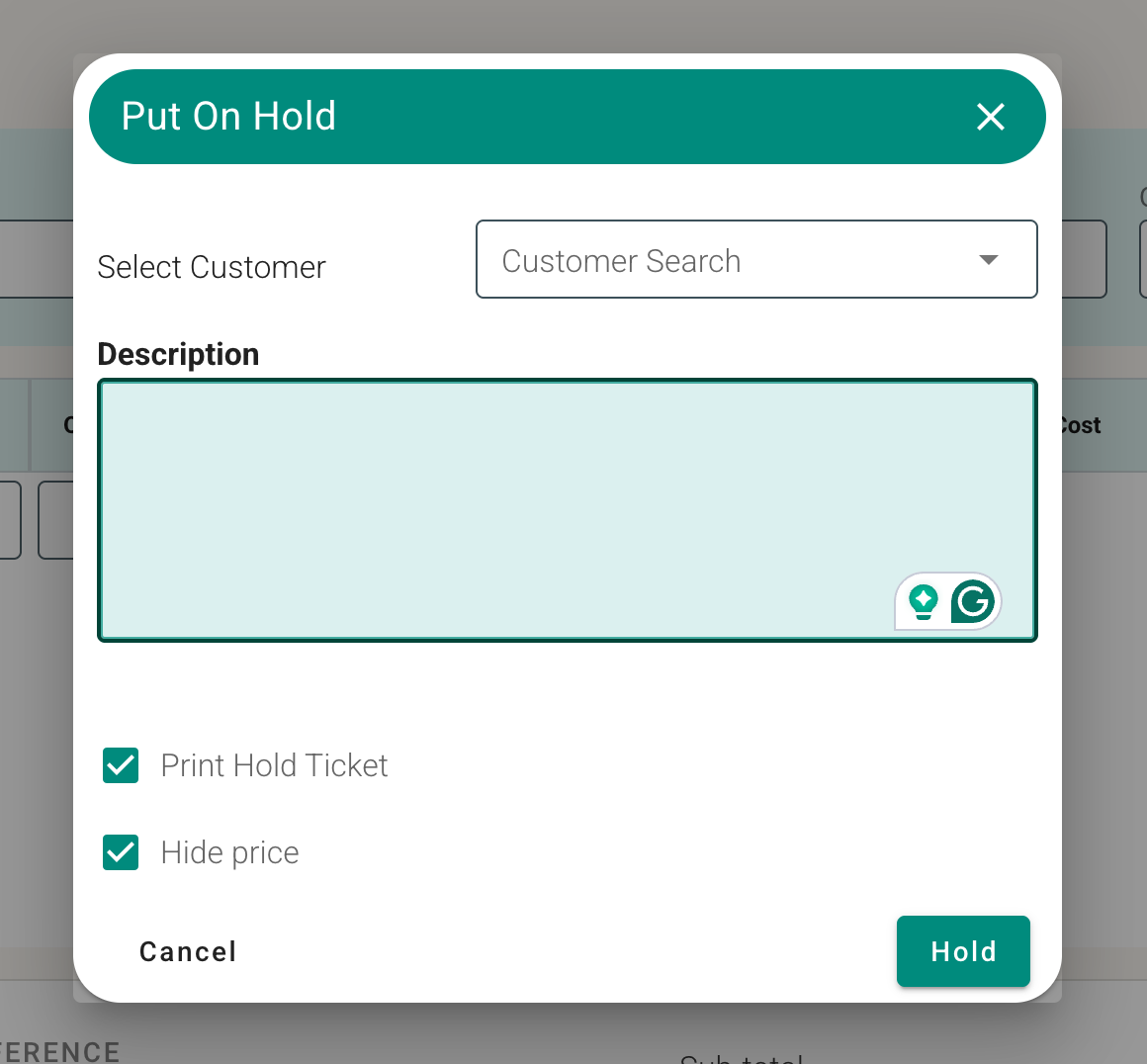
- Select or confirm the customer, if helpful.
- Enter a useful description so staff can identify the cart.
- Choose whether to print a hold ticket.
- Choose whether prices should be hidden on the ticket.
- Select Hold to save the cart.
The register is now ready for the next customer. Use a name, order detail, or other non-sensitive description that makes the held cart easy to recognize.
How to Print and Use a Hold Ticket
When placing a cart on hold, leave Print Hold Ticket selected to print a ticket automatically. You can also choose to hide prices.
Place the ticket with the merchandise so staff can identify the order later. The ticket can be viewed again from the Held Invoices page. Use it as a working document only: it is not proof of payment or a completed sales receipt.
How to Find and Recall a Held Invoice
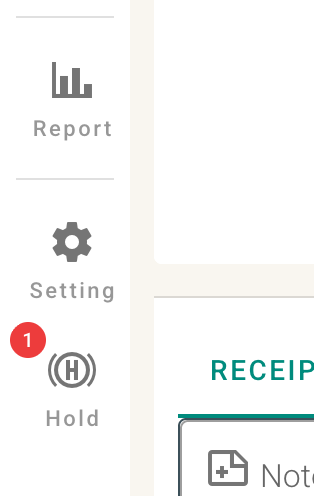
When one or more carts are held, a Held Invoice navigation item appears with a badge showing the number of held carts.
- Select the held-invoice navigation item.
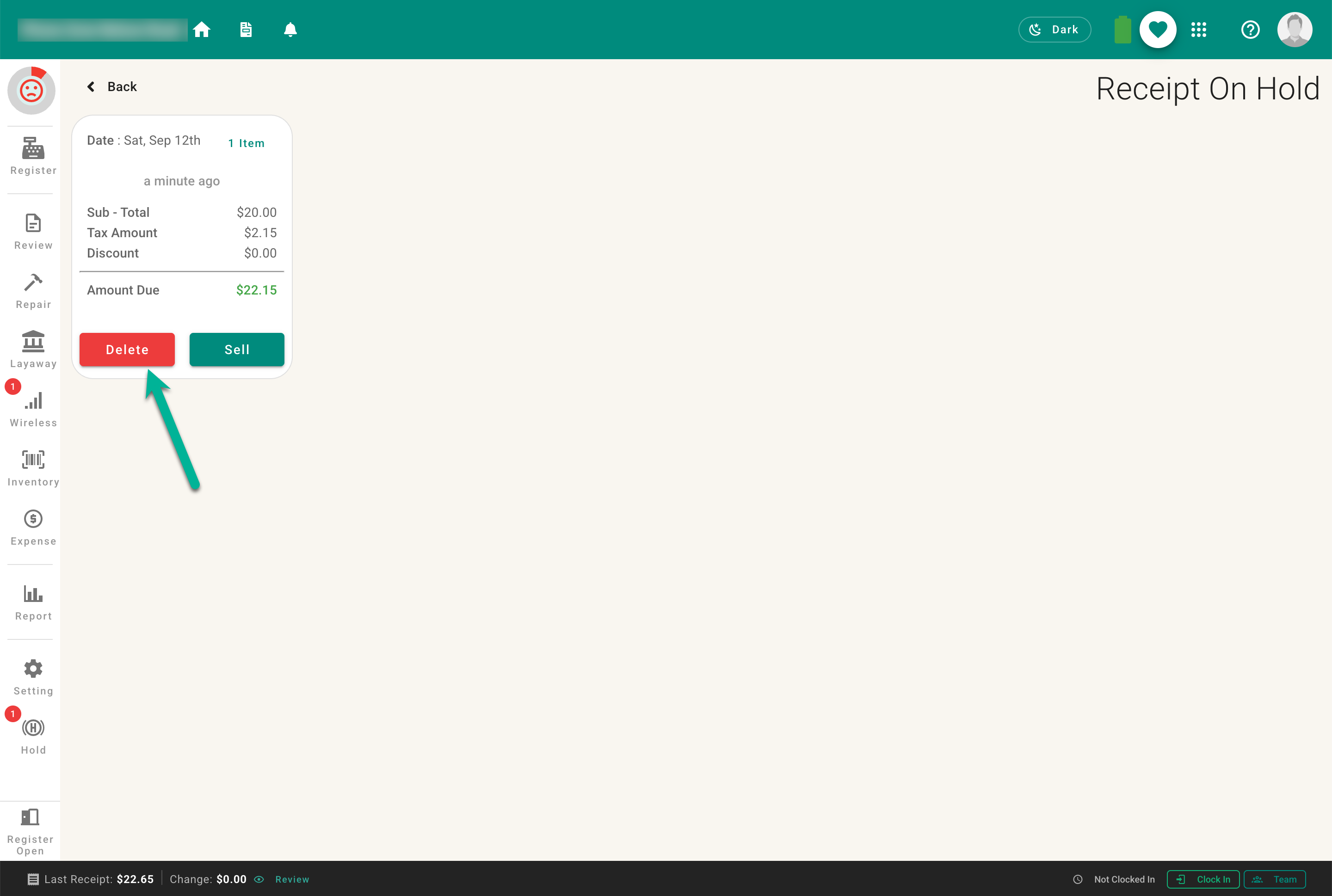
- Identify the cart by date, customer, item count, total, or description.
- Select the item count if you need to view its hold ticket.
- Select Sell to recall the cart to the register.
- Review the entire cart, then continue the sale.
If your current register cart is not empty, the system asks whether to preserve it while recalling the held cart or overwrite it. Read the choices carefully to avoid losing work.
How to Delete a Held Invoice Safely
Delete a held cart only when the customer has abandoned it or the hold was created by mistake.
- Open the Held Invoices page.
- Confirm the date, customer, items, totals, and description.
- Select Delete.
- Read the warning and confirm only if the cart is no longer needed.
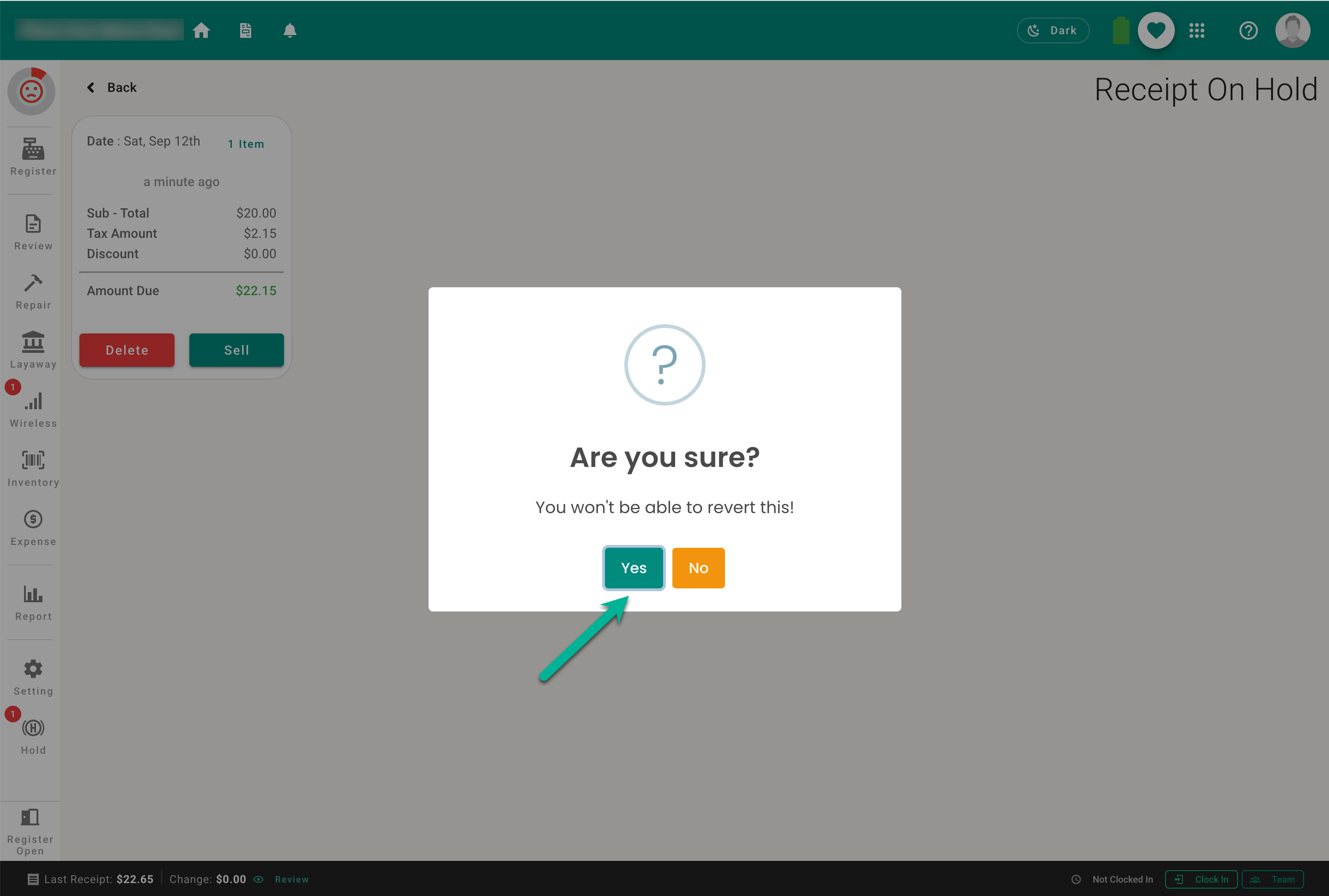
Deleting a hold cannot be treated like completing or cancelling a financial receipt—the sale was never completed. The held work is removed, so verify the correct cart before confirming.