Customers
Create customer profiles, review history, and manage customer information.
Managing Customers
Learn how to create, find, edit, and understand customer records in RepairNest POS.
Create a Customer
Create a customer record to keep contact details, addresses, loyalty activity, and purchase history together.
Open the customer list

Open Review and select Customers.
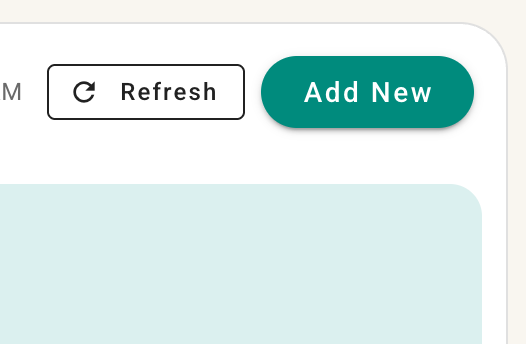
Select Add New from the customer list.
Enter the required information
- First name is always required.
- Phone number is always required.
- Last name is optional unless your organization has enabled the setting that makes it required.
- Email is optional.
You may also add an internal description and record how the customer heard about your business. Depending on your settings, the referral-source field may be required.
Add more details
Select More Options to enter an address, preferred language, additional contact information, and customer tags.
If you do not need the optional details, leave More Options closed and continue.
Save the customer
- Review the information.
- Select Save.
The customer will be added to the customer list and can be selected in supported sales and service workflows.
Tip: A separate settings article will explain how to require customer last names and referral sources. Link that article here once it is available.
View and Filter the Customer List
The customer list gives you a searchable view of customer records available to your location or organization.
Open the list
Screenshot placeholder: Customer list with the location selector and search controls visible.
Choose the customer scope
If your organization has multiple locations, use the location option to choose what you want to view:
- Select the current location to focus on customers associated with that location.
- Select the entire organization to view customers across all authorized locations.
The locations and records you can see depend on your permissions.
Understand the list
Each row identifies a customer and may show useful account information, including the customer's available loyalty-points balance. Use the available search and list controls to find the customer you need.
Open the row actions (the three-dot menu) to edit the customer or open the full customer profile.
Edit a Customer
Update a customer record when their contact information or other saved details change.
Edit a customer
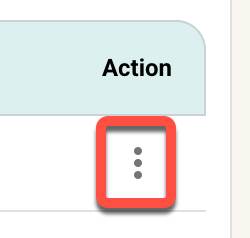
Three-dot customer actions menu with Edit highlighted.
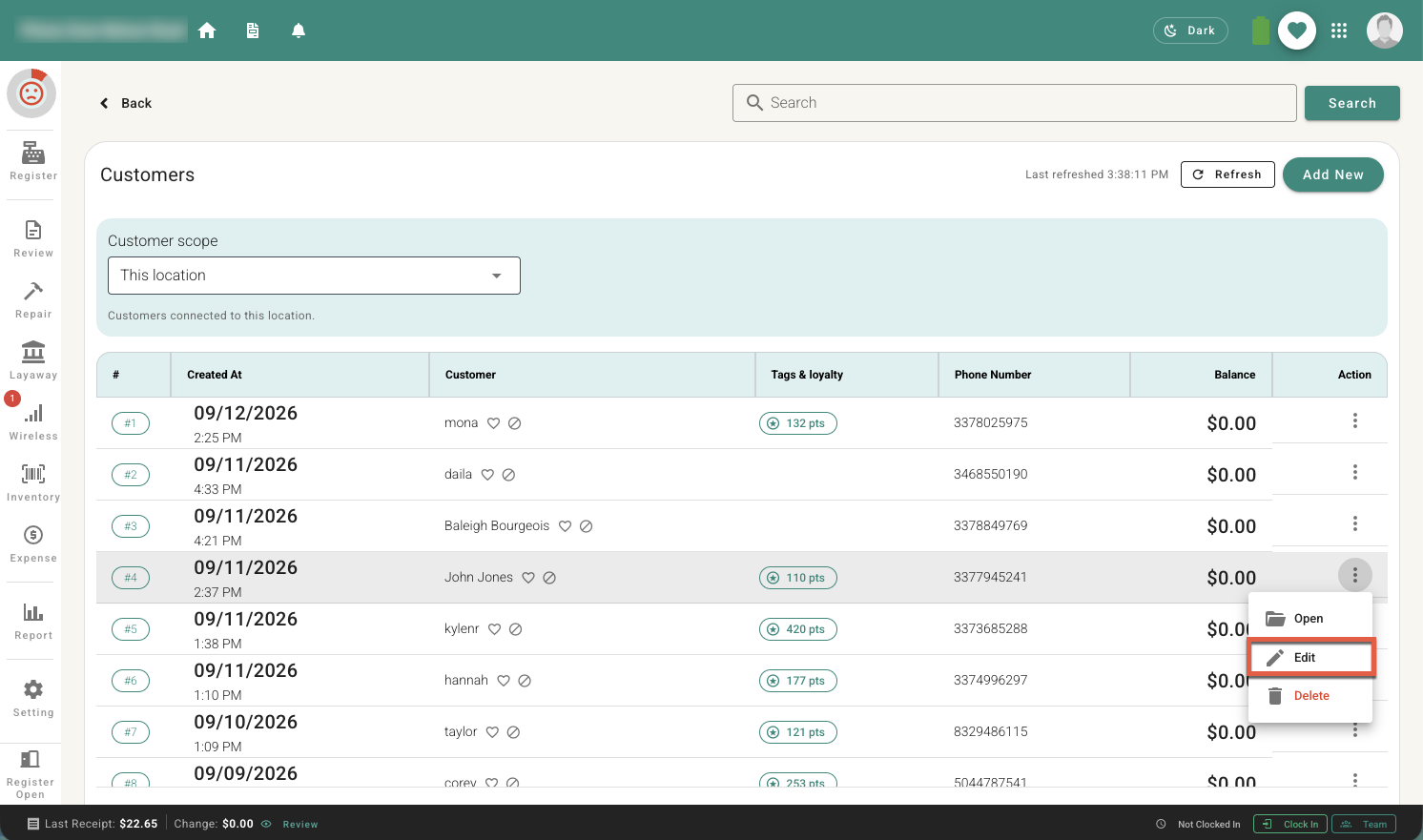
Required fields
First name and phone number must remain filled in. Last name is required only when that organization setting is enabled. Other details, such as email, address, language, tags, internal description, and referral source, can be updated when applicable.
Understand the Customer Profile
The customer profile brings together the customer's details, activity, loyalty information, and transaction history.
Open a customer profile
- Go to Review > Customers.
- Find the customer.
- Select the three-dot menu.
- Select Open.
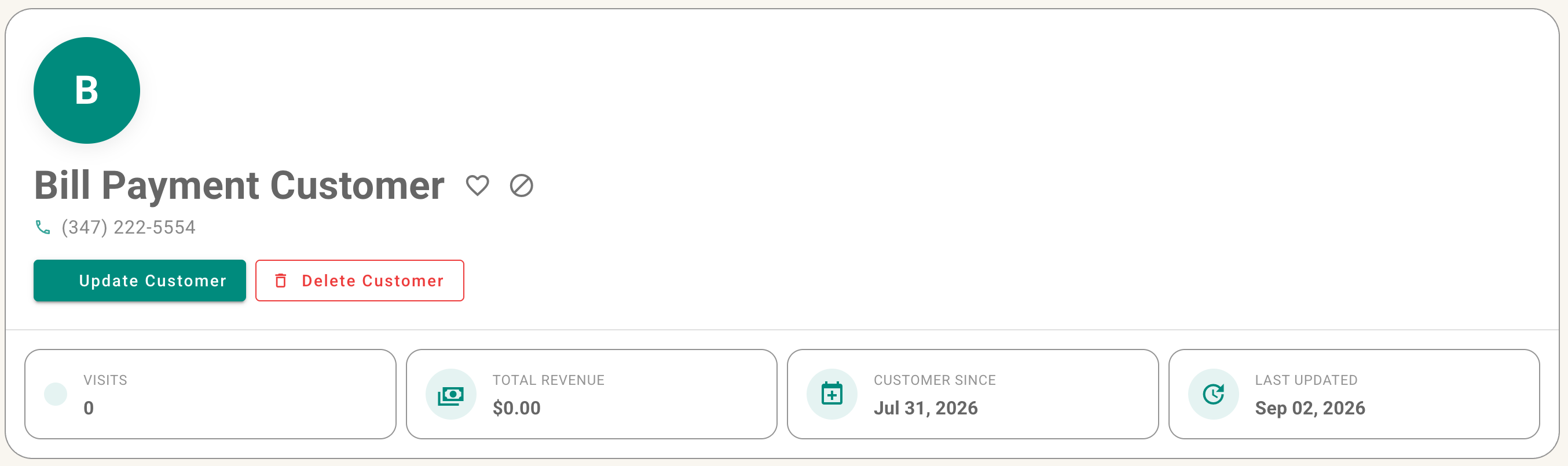
Customer actions menu with Open highlighted, followed by the customer profile overview.
What you can review
Depending on your permissions and enabled features, the profile may show:
- Customer contact details and addresses
- Total visits and spending
- The date the customer was created and last modified
- Account balance and statements
- Loyalty status and points balance
- Receipts and other customer activity
- Favorite/VIP or blacklist status
Loyalty controls
Note: Detailed loyalty setup, point rules, synchronization, and point locking will be covered in the Loyalty book.
Customer Status and Safety
Use customer status tools to recognize valued customers and warn staff about known concerns.
Mark a Customer as Favorite or VIP
Mark an important customer as a favorite so employees can recognize that the customer may deserve special attention.
Mark a customer as a favorite
- Open the customer profile, or find the customer from an available customer search.
- Select the heart icon.
- Confirm that the heart appears selected.
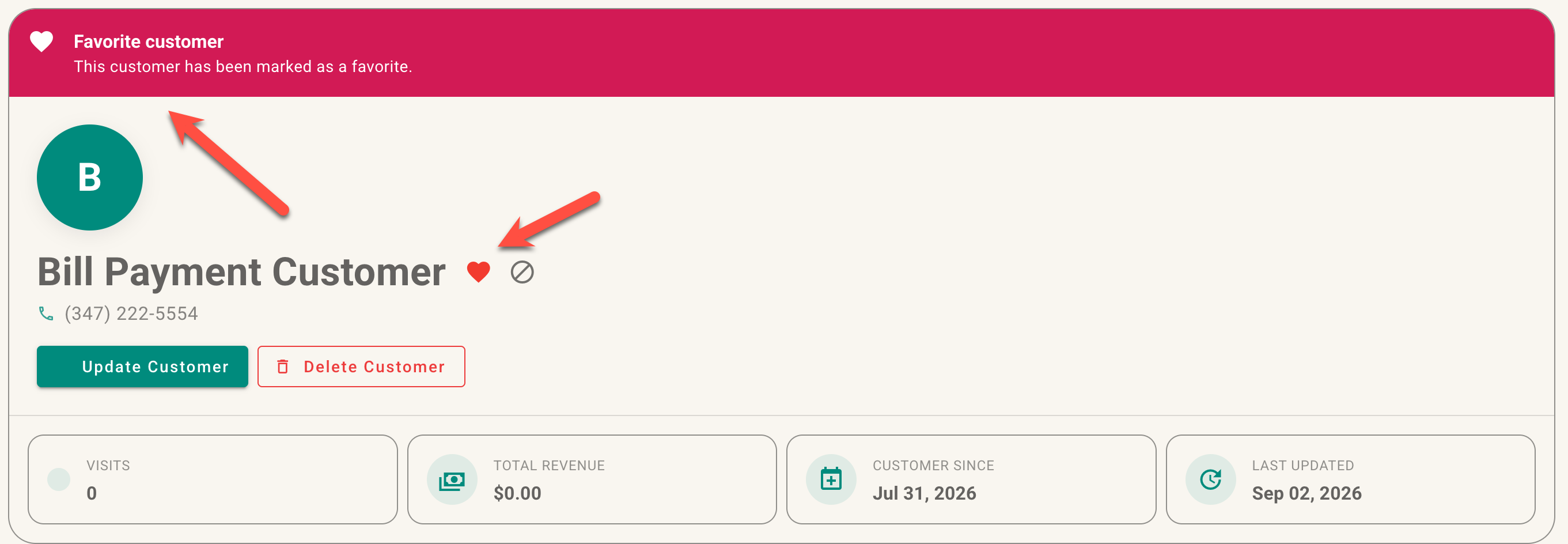
Heart icon on a customer profile before and after selection.
The favorite indicator is visible when employees encounter that customer in supported customer-search and profile views. It is an internal status and does not prevent or change sales.
Remove favorite status
Select the heart again when the customer should no longer be marked as a favorite.
Blacklist a Customer
What employees will see
The warning applies across the organization. If the customer visits another location, authorized employees can see that the customer was blacklisted, the originating location, and the recorded reason.
Important: Blacklisting is a warning, not a sales block. Employees can still complete a sale after reviewing the warning and following your business policy.
Writing a useful reason
Keep the reason brief, factual, and appropriate for authorized staff. Do not include unnecessary sensitive information or personal judgments.
Customer Details and History
Manage customer addresses and review account, receipt, and transaction history.
Manage Customer Addresses
A customer profile can store multiple addresses, such as a home, work, store, billing, or delivery address.
Add an address while creating a customer
- Open the Add Customer dialog.
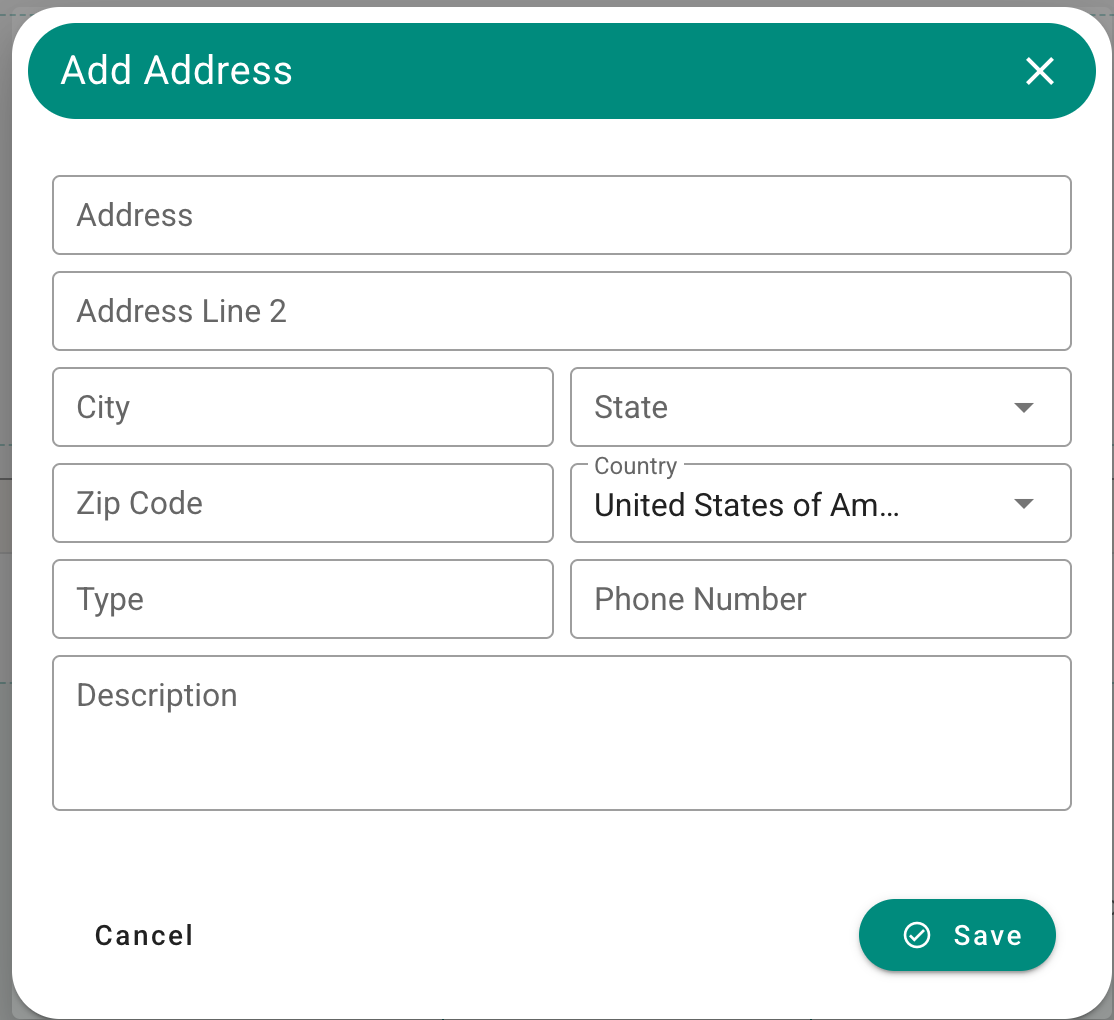
- Select More Options.
- Enter the available address information.
- Complete the required customer fields and select Save.
You do not need to add an address to create a customer. If no address is needed, leave More Options closed.
More Options area with customer address fields.
Maintain multiple addresses
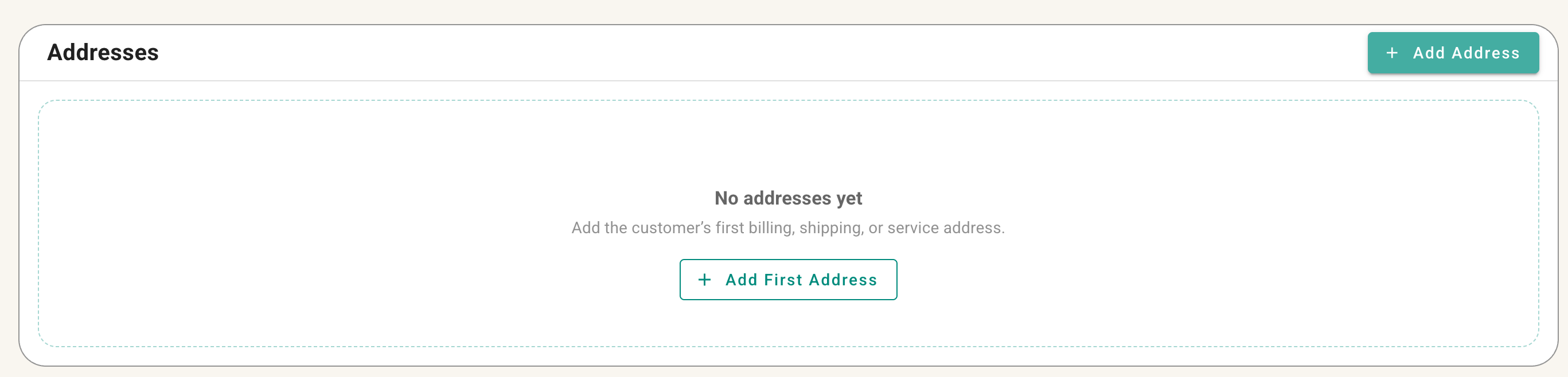
Open the customer profile to review and maintain saved addresses. Add separate addresses when a customer needs more than one address on file, and update outdated information as needed.
Address section of the customer profile showing multiple saved addresses.
View Customer Receipts, Balance, and History
Use the customer profile to review the customer's account balance, visits, spending, receipts, and related history.
Open customer history
- Go to Review > Customers.
- Find the customer and open the three-dot menu.
- Select Open.
- Go to the profile area that contains receipts, statements, or account activity.
Screenshot placeholder: Customer profile summary showing visits, spending, balance, and history navigation.
Filter receipts
Use the available filters to narrow the history by details such as:
- Receipt type
- Receipt status
- Cash register
- Deleted invoices, when included by the selected filter
Screenshot placeholder: Customer receipt history with filter controls expanded.
Deleted invoices may remain visible in customer history for reference and audit purposes even though they are no longer active sales documents. The information available depends on your permissions.