Customer Details and History
Manage customer addresses and review account, receipt, and transaction history.
Manage Customer Addresses
A customer profile can store multiple addresses, such as a home, work, store, billing, or delivery address.
Add an address while creating a customer
- Open the Add Customer dialog.
- Select More Options.
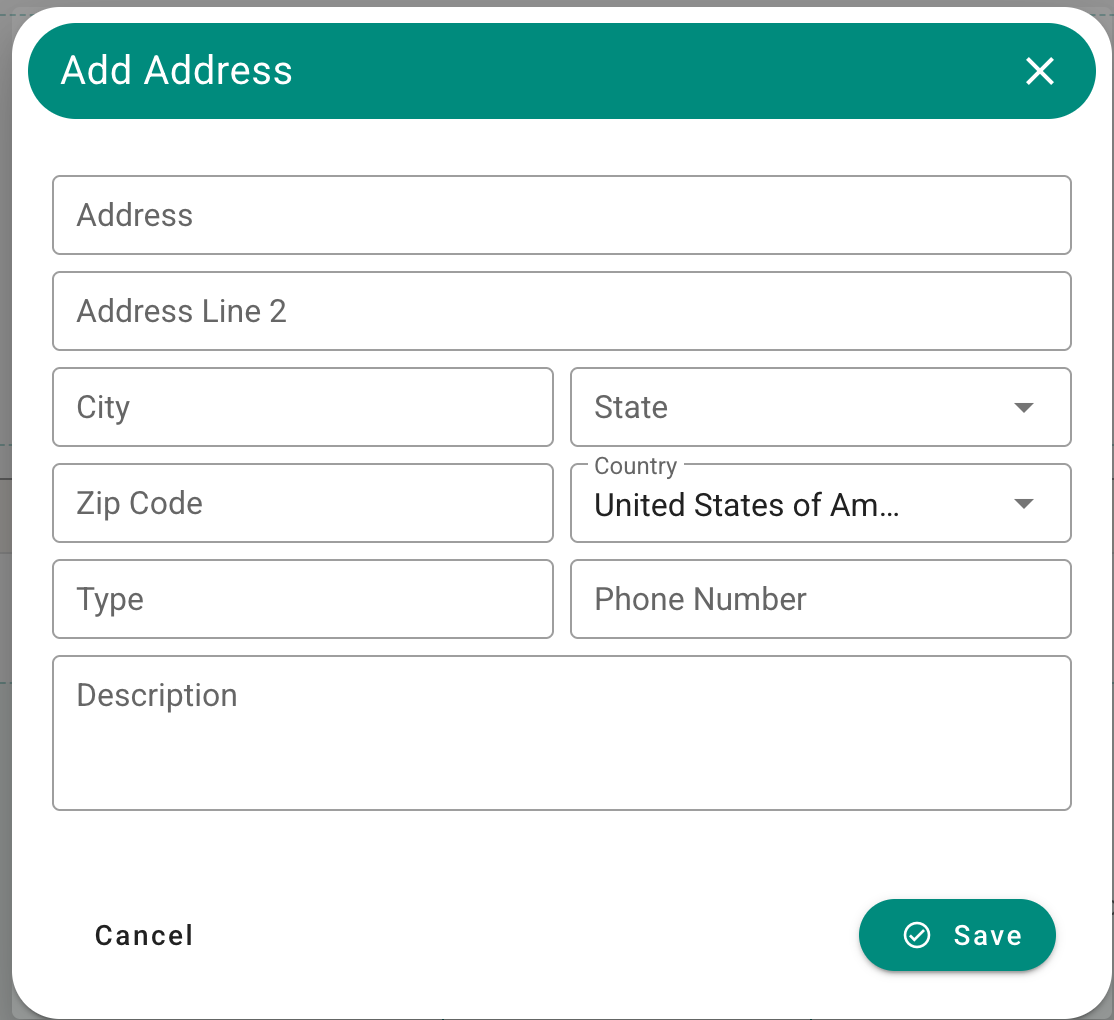
- Enter the available address information.
- Complete the required customer fields and select Save.
You do not need to add an address to create a customer. If no address is needed, leave More Options closed.
More Options area with customer address fields.
Maintain multiple addresses
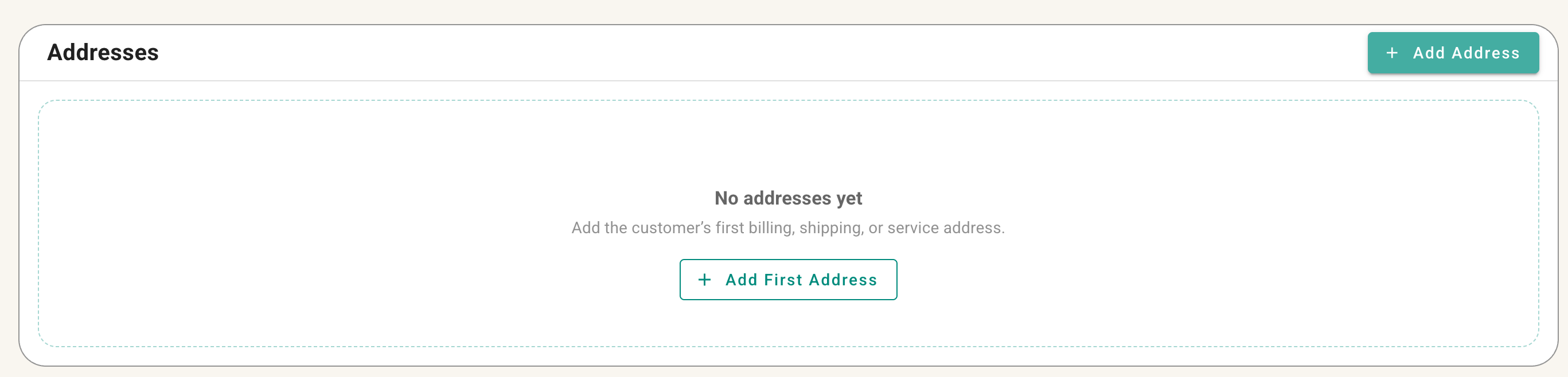
Open the customer profile to review and maintain saved addresses. Add separate addresses when a customer needs more than one address on file, and update outdated information as needed.
Address section of the customer profile showing multiple saved addresses.
View Customer Receipts, Balance, and History
Use the customer profile to review the customer's account balance, visits, spending, receipts, and related history.
Open customer history
- Go to Review > Customers.
- Find the customer and open the three-dot menu.
- Select Open.
- Go to the profile area that contains receipts, statements, or account activity.
Screenshot placeholder: Customer profile summary showing visits, spending, balance, and history navigation.
Filter receipts
Use the available filters to narrow the history by details such as:
- Receipt type
- Receipt status
- Cash register
- Deleted invoices, when included by the selected filter
Screenshot placeholder: Customer receipt history with filter controls expanded.
Deleted invoices may remain visible in customer history for reference and audit purposes even though they are no longer active sales documents. The information available depends on your permissions.